Skip to content
Client Project

HomeLink

Smart Home App — buy, install & control your connected devices from one place.

  • Product Discovery
  • UI Design
  • Prototyping
  • iOS & Android
  • Design System

Project Overview

Role
Solo Product Designer — research to final UI
Timeline
Client engagement
Type
Client project
Platform
iOS & Android (React Native)
Status
Delivered to development
Interactive prototype — on request

HomeLink is a mobile application that transforms any home into a smart home. It unifies three distinct experiences — buying connected devices, installing them, and controlling them daily — into a single, coherent product. I led the full design process solo, from product discovery to the final UI delivered to development. Screens are published with the client's permission.

The Challenge

The core UX problem: how do you merge three fundamentally different mental models — e-commerce, technical setup, and home automation — into one experience that feels natural?

Commerce

Discovering and buying connected devices — a retail experience

Installation

Configuring a technical device — a guided, step-by-step experience

Control

Managing the home daily — a dashboard and automation experience

Main UX Risk

Users could feel lost switching between a shopping logic and a home control logic. The challenge was to create a seamless journey across these three modes without jarring transitions.

Discovery & User Persona

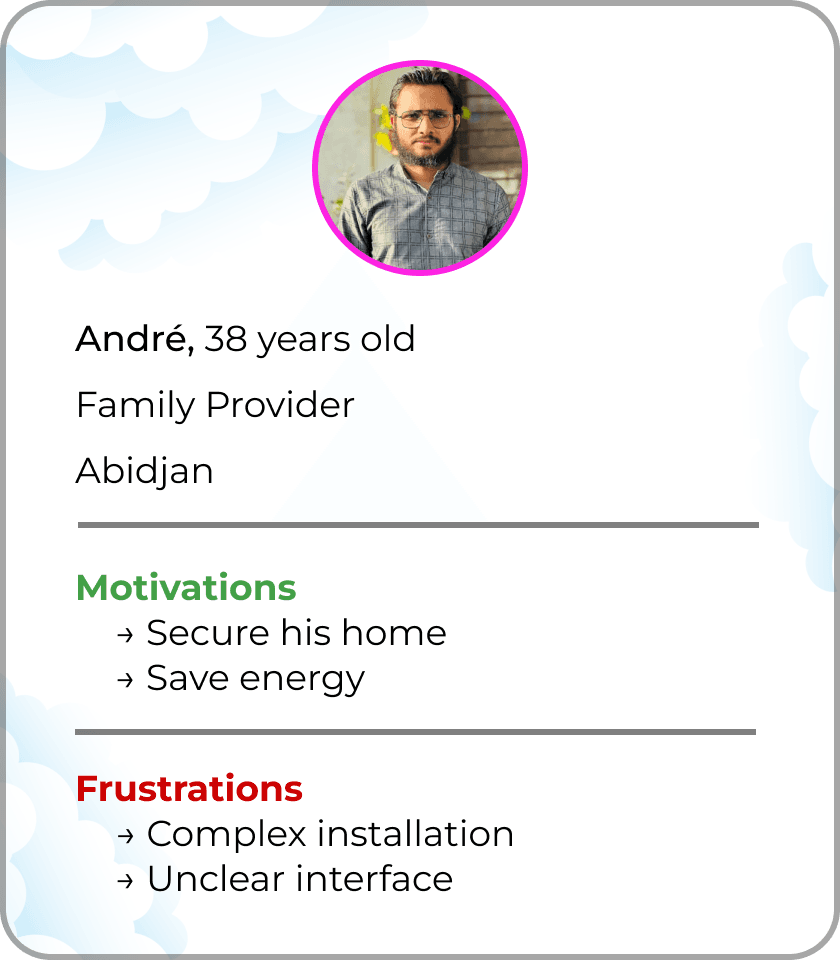
I defined the primary persona to guide every design decision throughout the project.

Primary User

Homeowner or head of household · 30–50 years old

Motivations

Secure the homeImprove comfortSave energy

Frustrations

Complex installationUnclear app interfaceAutomations too hard to set up
Primary persona for HomeLink — a homeowner aged 30 to 50

User Journey & Information Architecture

I structured the entire experience around a logical four-step cycle that mirrors how users naturally think about their smart home:

  1. 01

    Discover

    Browse & buy devices

  2. 02

    Install

    Guided device setup

  3. 03

    Control

    Dashboard & remote control

  4. 04

    Automate

    Create smart scenarios

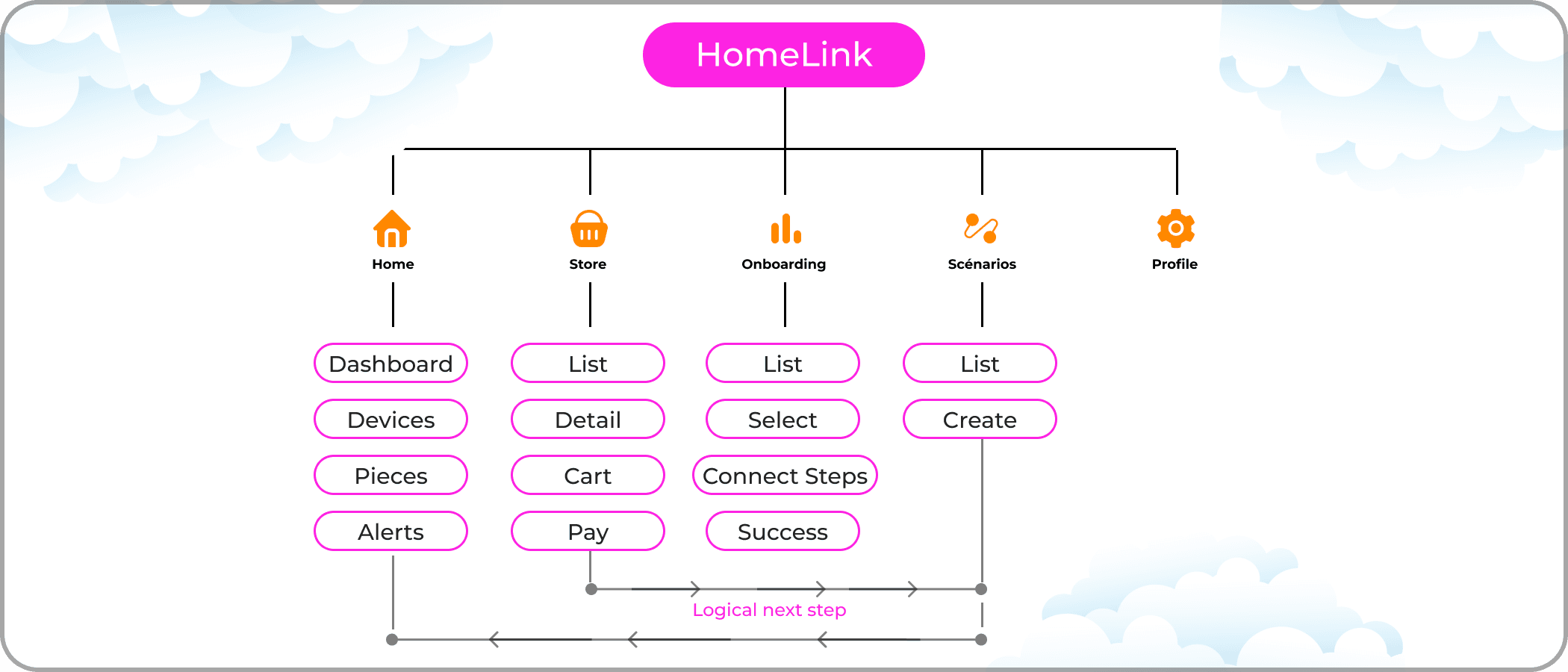
App Architecture — 5 main sections:

Home

Dashboard — core of the experience

Store

Discover & buy devices

Scenarios

Manage automations

Onboarding

Install new device

Profile

Account & settings

Note: Onboarding isn't a permanent tab: it's the guided setup flow, launched right after a purchase in the Store or whenever a new device is added. The Store sits at the same level as Home because buying devices is how the home grows — commerce is one of the three experiences the app brings together.

HomeLink information architecture sitemap

Design Principles & System

Simplicity

Key actions are accessible in 1–2 taps from the Dashboard. No buried menus.

Progressivity

Complex features like automations are presented step by step, never all at once.

Modularity

The interface works equally well with 1 device or 30. It scales gracefully.

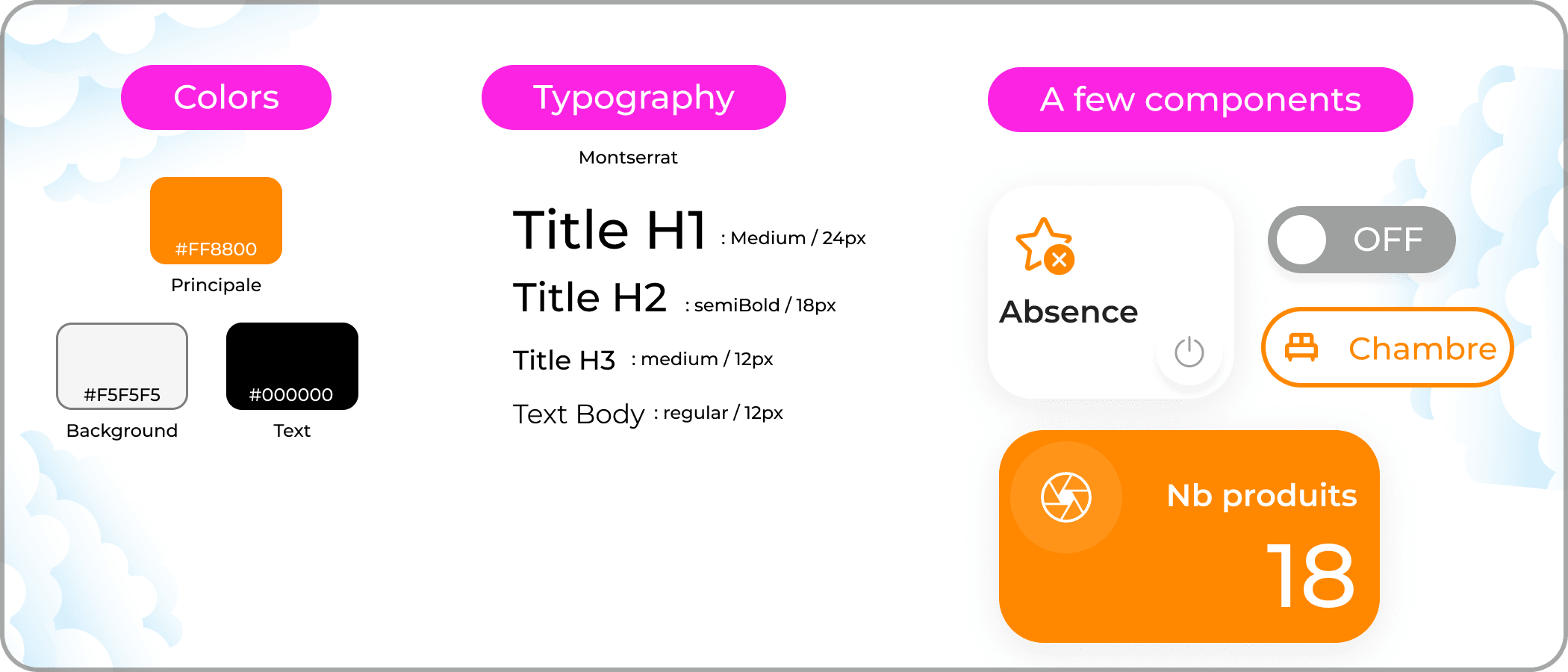
HomeLink design system — colours, typography and components

Key Design Decisions

From purchase straight into setup

Problem
Once a device is bought, installing it is a separate, technical task — the moment where users are most likely to drop off.
Options considered
Leave setup to a separate section users find on their own later, or hand them over to it right after checkout.
Decision
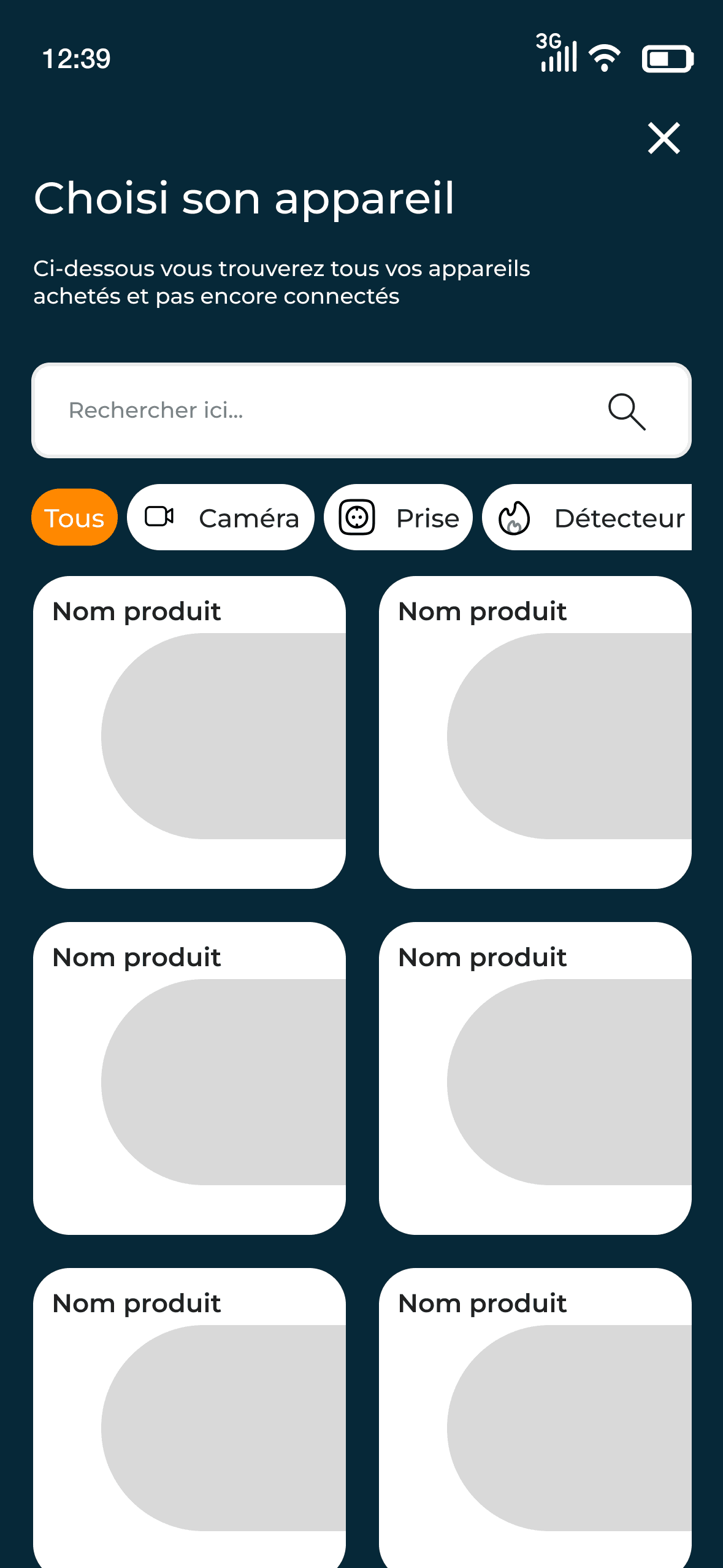
After purchase, the app leads directly into the guided onboarding flow for that device.
Why
It keeps the user's momentum and removes the jarring switch from shopping logic to setup logic identified as the main UX risk.
The Store as a main tab

Problem
Commerce is one of the three core experiences, but a smart home app is mostly used for daily control.
Options considered
Tuck the Store away in a secondary menu, or give it a top-level tab next to Home.
Decision
The Store is one of the main sections, at the same level as Home, while Home stays the default screen.
Why
Adding devices is how the home grows over time; keeping the Store one tap away supports an interface built to scale from 1 device to 30.

Automations, one step at a time

Problem
Automations are the most powerful feature, and the most intimidating one for non-technical users.
Options considered
A single form exposing every trigger and action at once, or a creation flow split into small steps.
Decision
A step-by-step flow in plain language with visual cues, one decision per screen.
Why
It applies the Progressivity principle: complex features are revealed gradually, so users build automations with confidence.

Key Screens

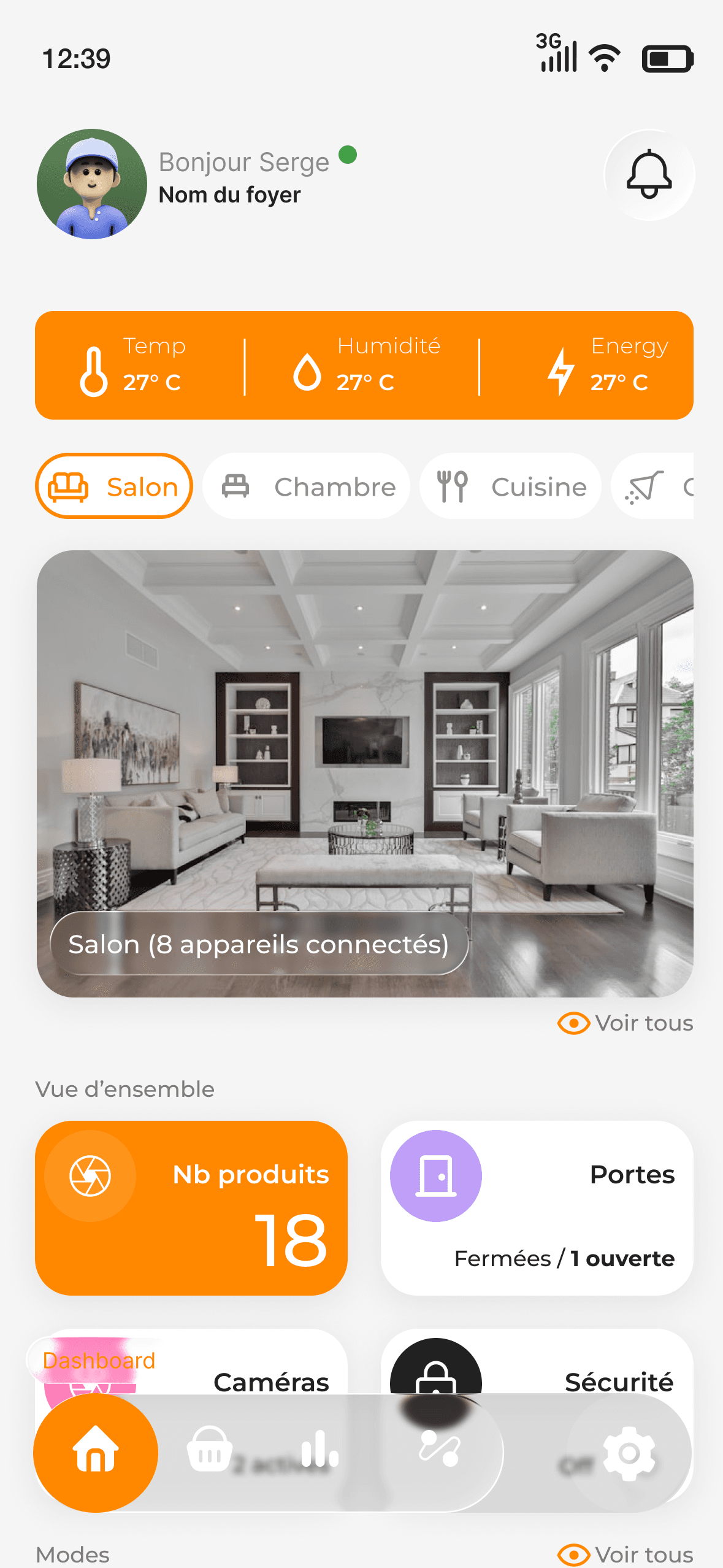
Dashboard — Home Control Hub

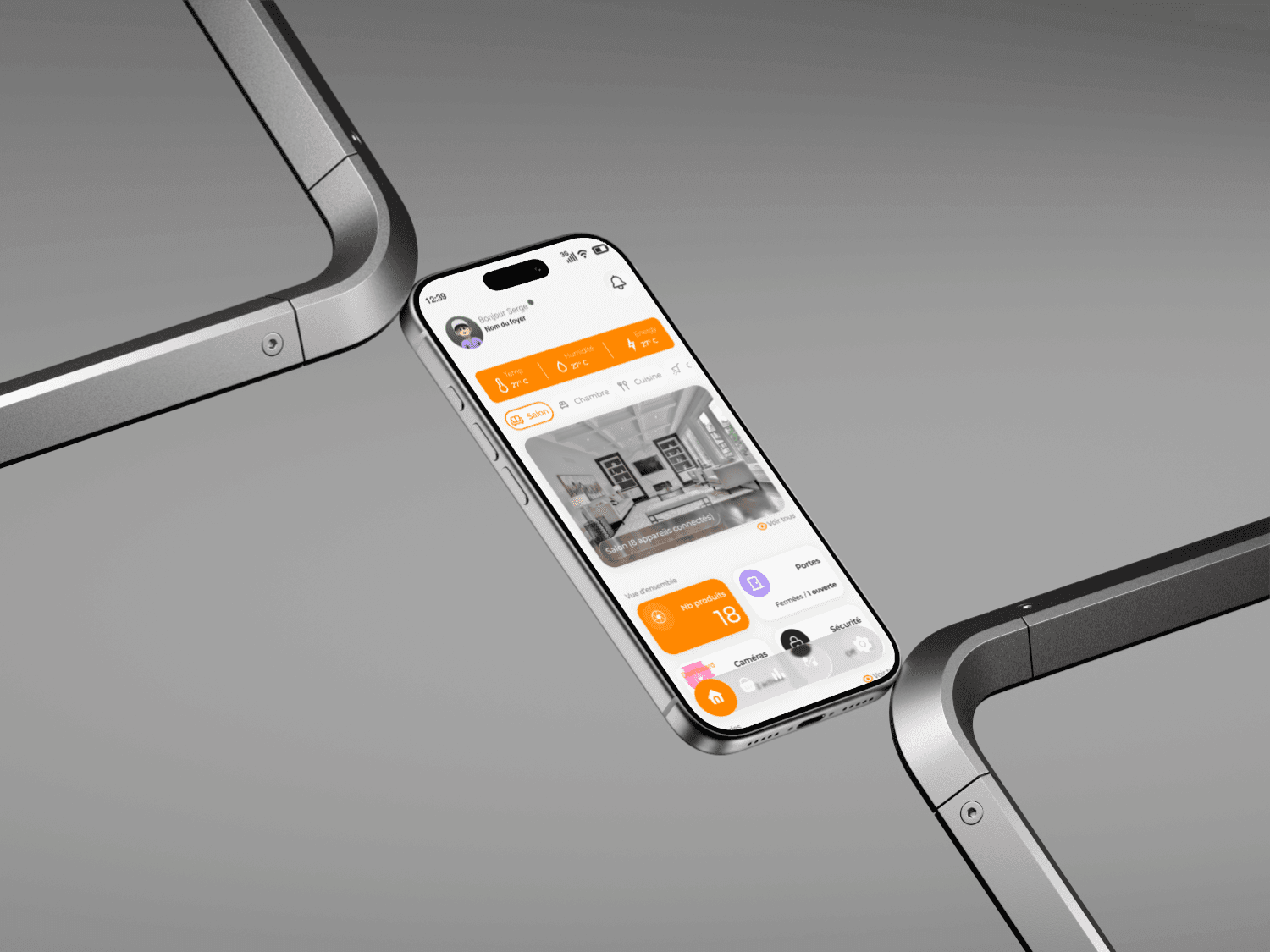
The Dashboard is the heart of HomeLink. At a glance, users see the status of all devices (online/offline, battery low, security alert), control rooms, and trigger their most-used automations. Every critical state is surfaced immediately — no digging required.

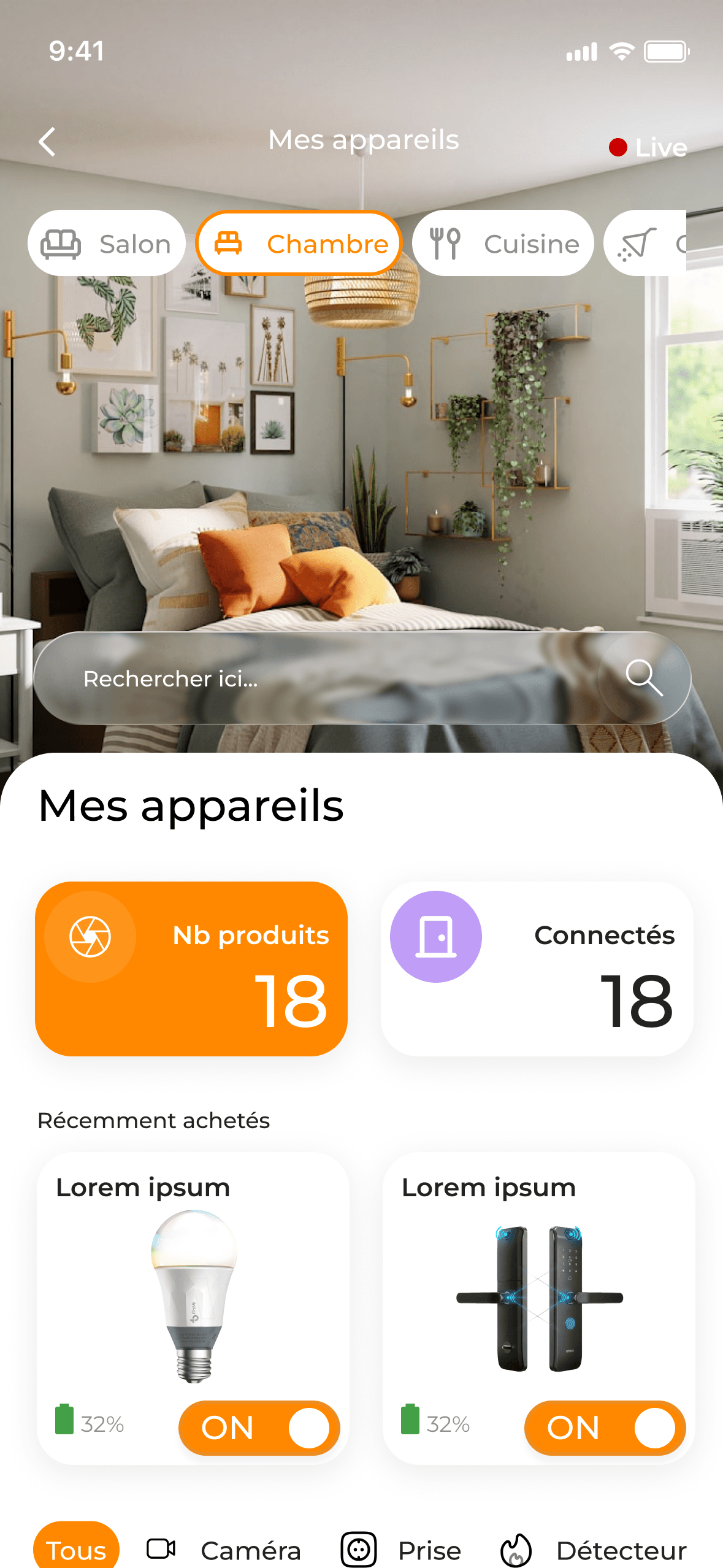
HomeLink dashboard screenHomeLink device detail screen
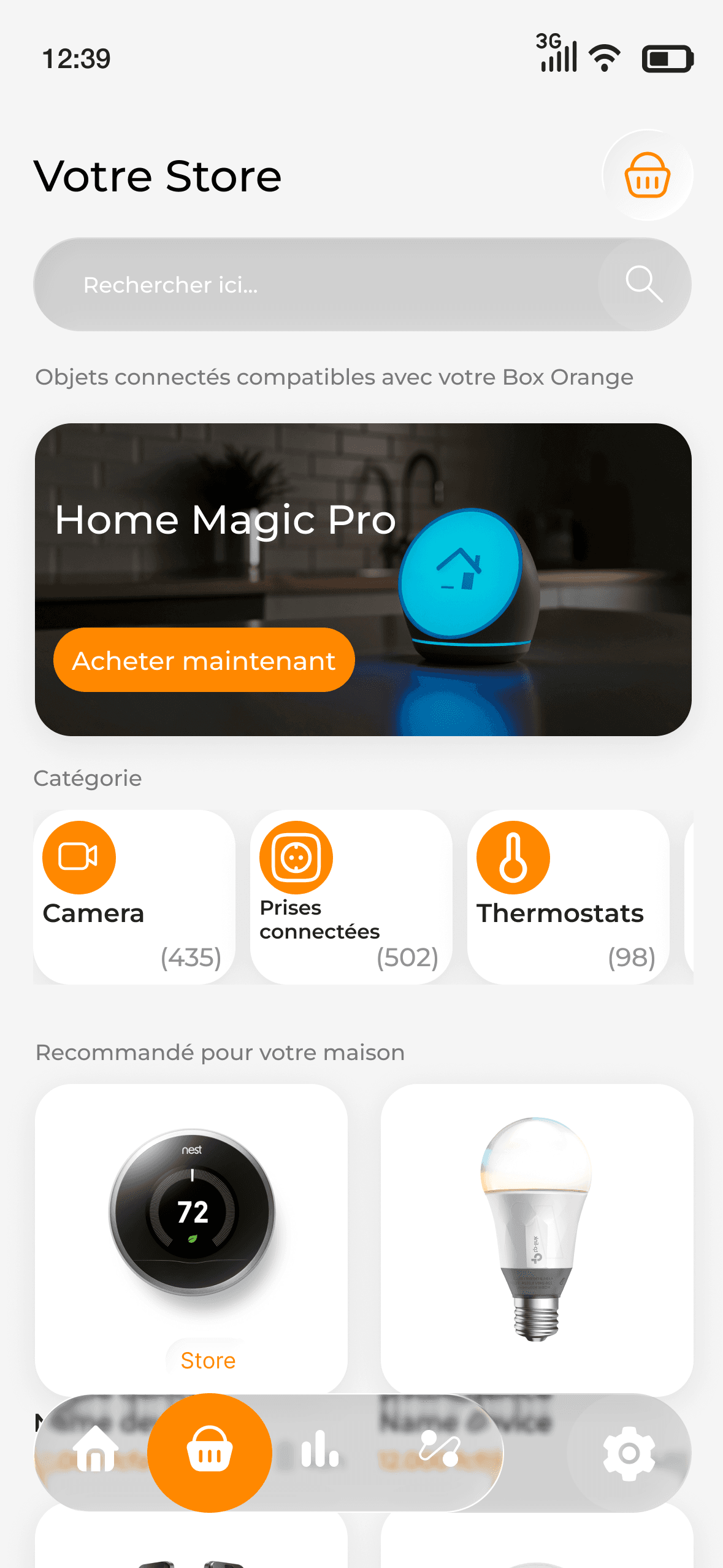
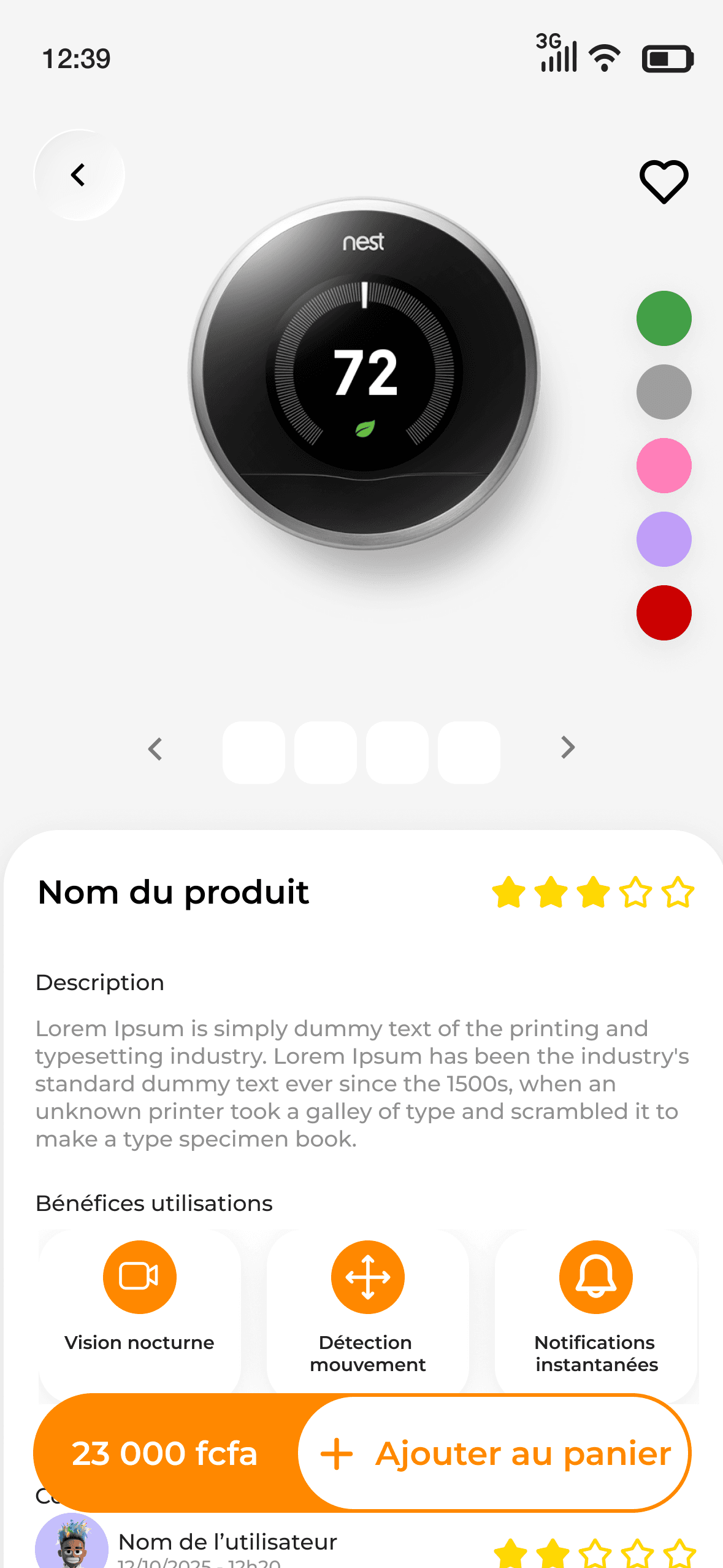
HomeLink store product list screenHomeLink store product detail screen

Store — Buy Connected Devices

The Store allows users to discover and purchase compatible connected devices directly in the app. After purchase, the app guides them seamlessly into the Onboarding flow — the transition is invisible and intentional.

Onboarding — Guided Device Setup

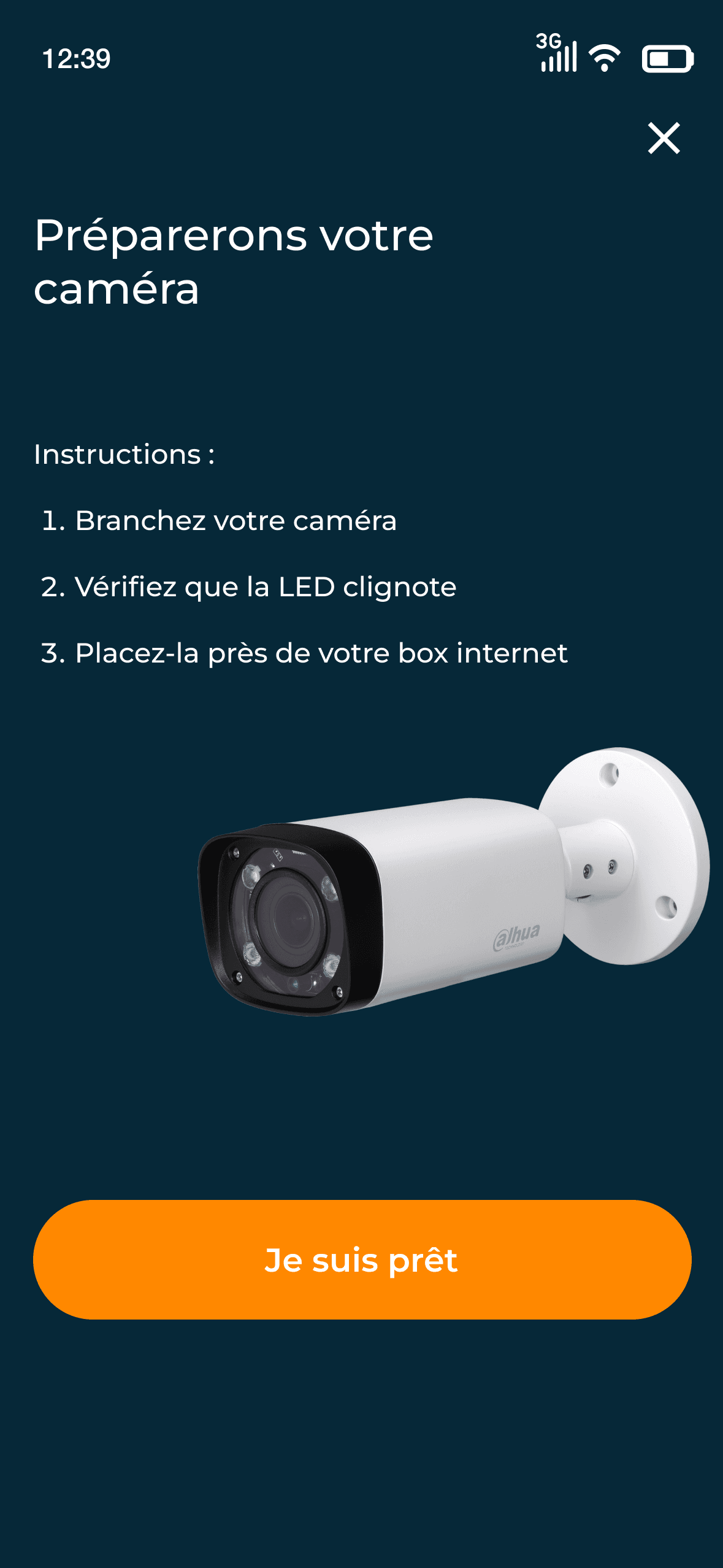
Installing a connected device is typically a pain point for non-technical users. I designed a step-by-step onboarding flow with clear progress indicators, visual instructions, and contextual help — making a complex technical process feel as simple as following a recipe.

HomeLink onboarding step oneHomeLink onboarding step two
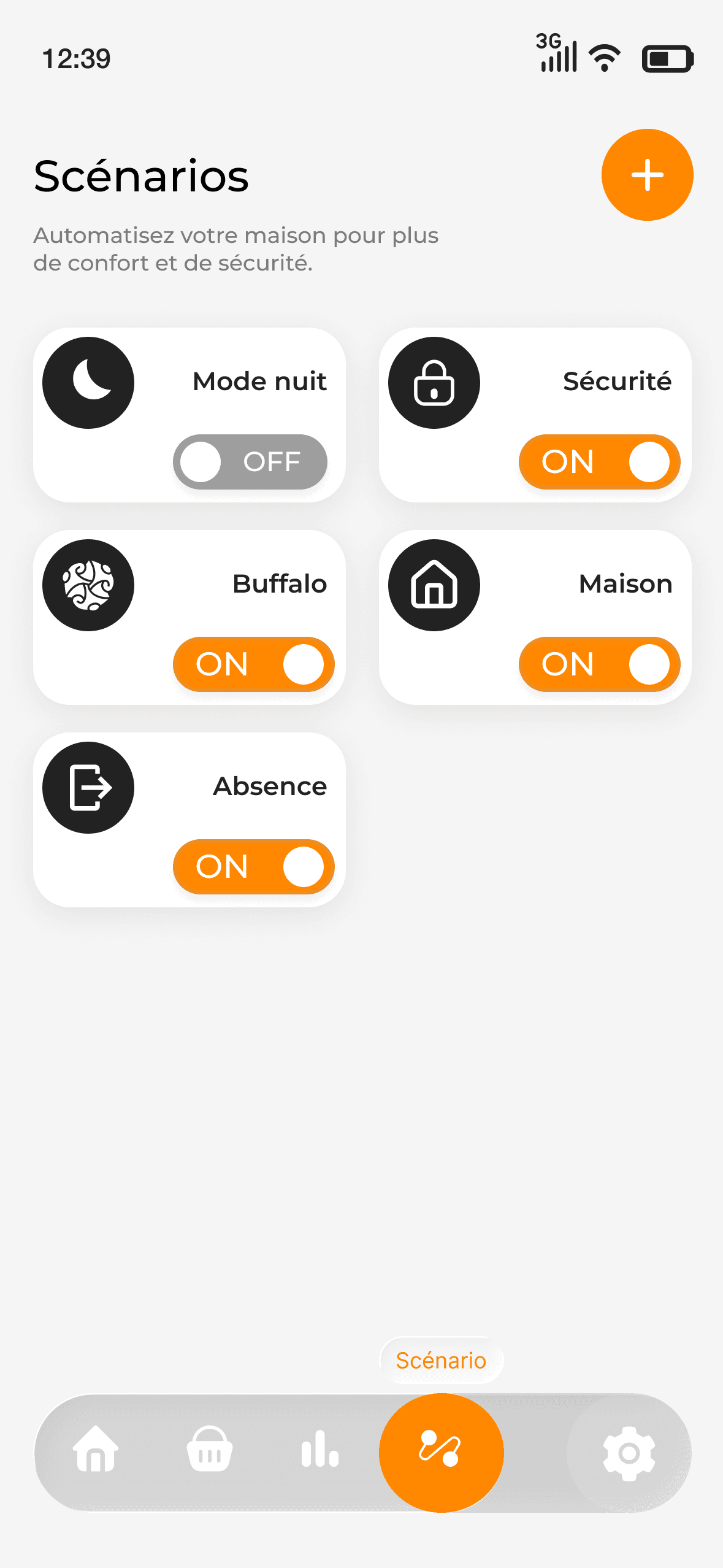
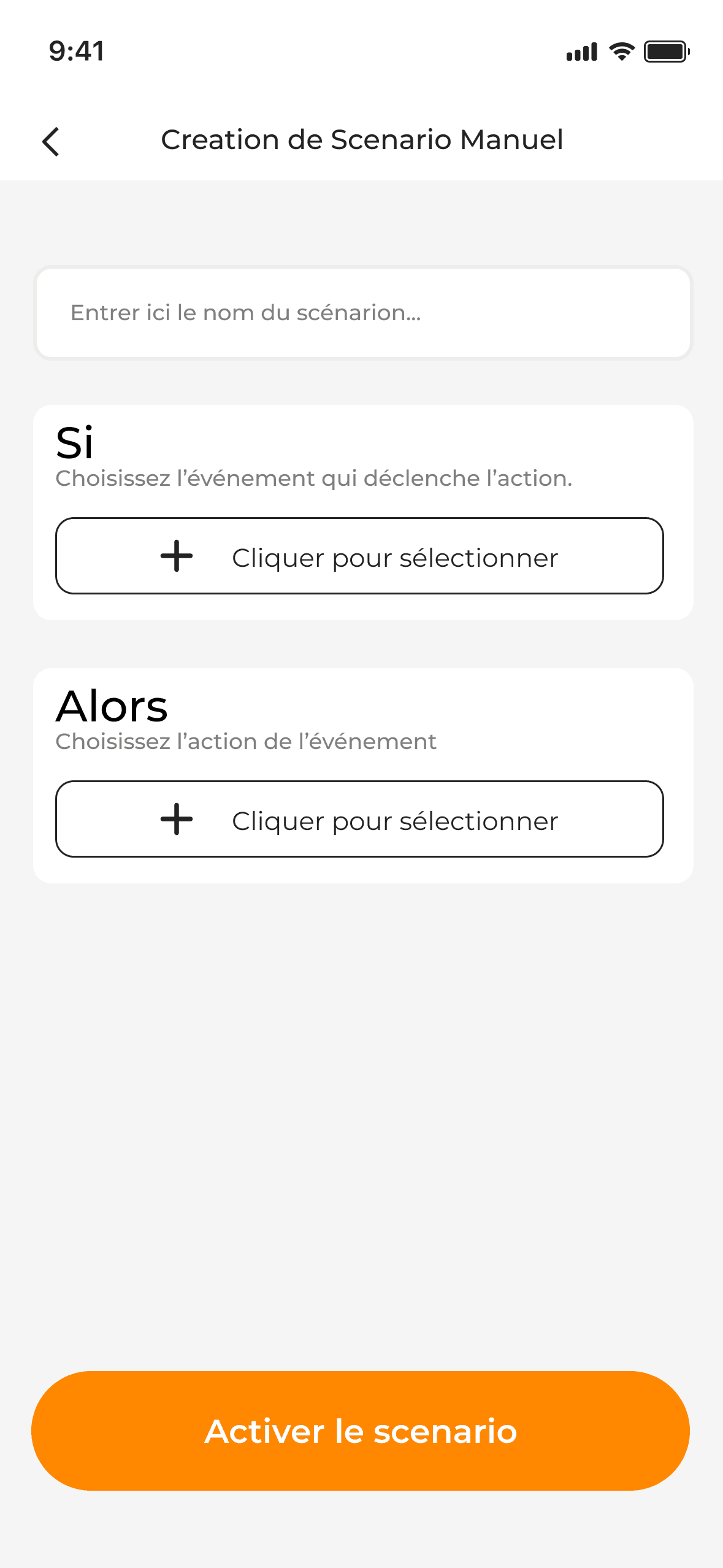
HomeLink automations list screenHomeLink automation creation step

Scenarios — Smart Automations

Automations are the most powerful — and most intimidating — feature of any smart home app. I broke the creation flow into small, digestible steps using plain language and visual cues, so users build confident automations without needing technical knowledge.

System State Management

A smart home app must always communicate what's happening. I designed clear, accessible states for all critical device conditions:

Device Online

Device Offline

Low Battery

Security Alert

Outcomes

Success criteria I designed against

  • Key daily actions reachable in 1–2 taps from the Dashboard.
  • A single design system covering commerce, onboarding and control — no visual seams between the three modes.
  • Automation creation broken into steps a non-technical user can complete without help.
  • Every critical device state (offline, low battery, alert) surfaced on the Dashboard, not buried.

How I pressure-tested the design

  • Persona-driven walkthroughs of the four-step journey (discover → install → control → automate).
  • Design-system audit for consistency across all 5 sections and 20+ screens.
  • Final UI delivered to the development team as the build spec.

Next step — Post-launch usability testing on the onboarding and automation flows, and analytics on activation (first device connected) and automation adoption.

Reflections & Learnings

HomeLink was the most complex product I've designed to date — not because of the visual challenge, but because of the mental model challenge. Without access to user testing during the engagement, I compensated with persona-driven walkthroughs and a strict design-system audit — and flagged onboarding and automations as the first flows to validate with real users after launch.

Working solo end-to-end also sharpened my ability to make fast, confident decisions with limited feedback loops — a skill I now consider one of my core strengths for remote work.

Key takeaway

The best product experiences feel like they were always meant to work exactly that way. HomeLink taught me that getting there requires designing for the user's mental model, not the product's technical structure.

Got a project in mind?
Let's build it.

I'm available for remote contracts, freelance missions, and full-time roles. Based in Abidjan — working with teams worldwide.